
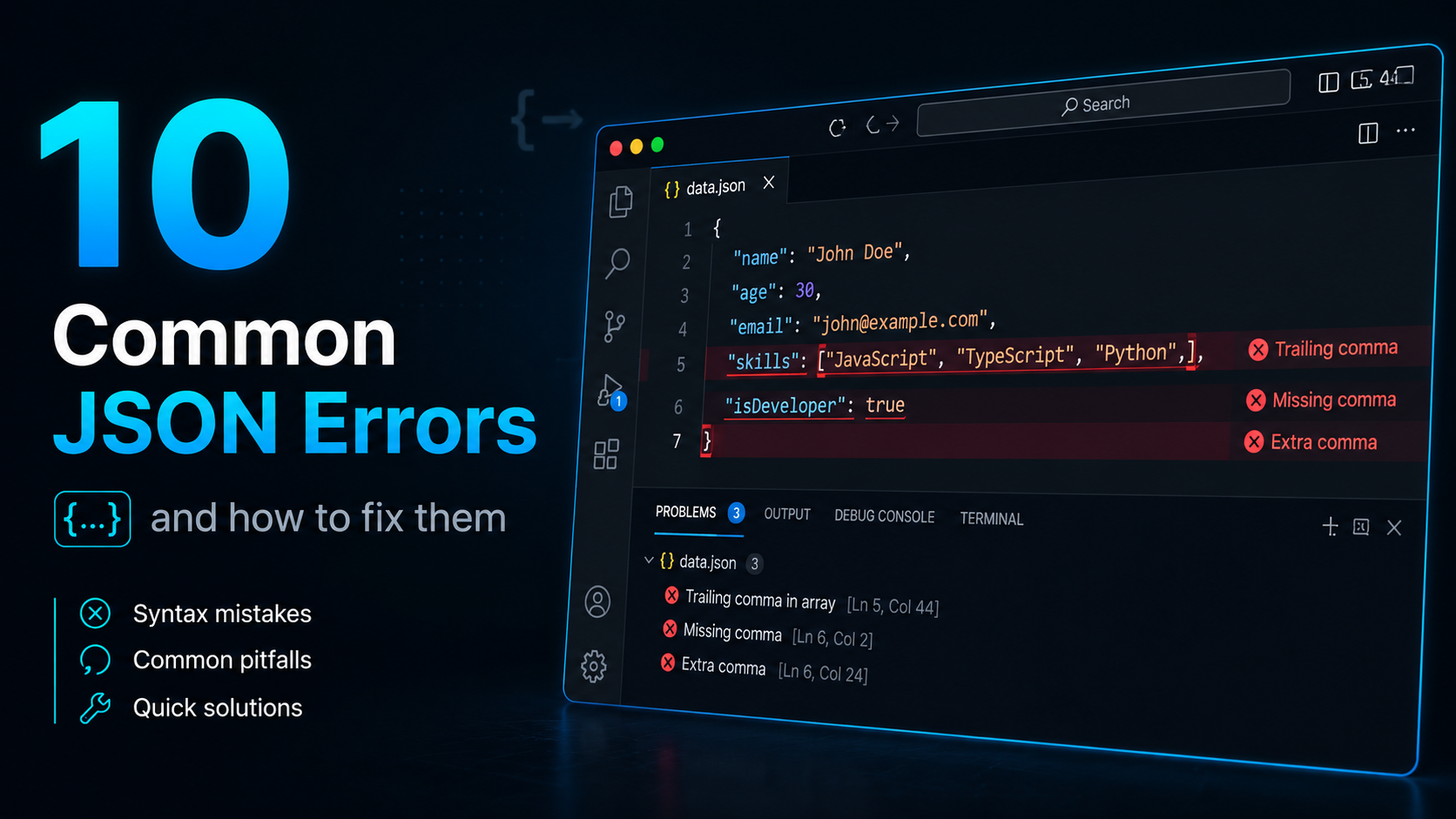
One missing comma. One wrong quote. One extra bracket.
That is all it takes for JSON to completely break your API, crash your app, or block your entire build for an hour.
JSON looks simple — and it is. But it is also brutally strict. There is no room for guessing. If your JSON has even one syntax mistake, your parser throws an error and stops completely.
In this guide, you will learn the 10 most common JSON errors developers hit every day, why each one happens, and exactly how to fix it fast. Every section includes the real error message you will see in your terminal and a working code fix you can copy immediately.
And if you want to skip the manual debugging entirely — paste your JSON into our free JSON Formatter and Validator Tool and it will find the exact error for you in seconds.
Let’s get into it.
Quick Reference Table — All 10 JSON Errors at a Glance
Before we dive deep, here is a fast overview of every error covered in this guide.
| # | Error | Frequency | One-Line Fix |
|---|---|---|---|
| 1 | Trailing Comma | 🔴 Very Common | Remove comma after last item |
| 2 | Single Quotes Instead of Double | 🔴 Very Common | Replace all ' with " |
| 3 | Unquoted Keys | 🔴 Very Common | Wrap every key in double quotes |
| 4 | Missing Comma Between Properties | 🟡 Common | Add comma after each property |
| 5 | Unescaped Special Characters | 🟡 Common | Escape with backslash \ |
| 6 | Comments Inside JSON | 🟡 Common | Remove all comments |
| 7 | Wrong Boolean or Null Casing | 🟡 Common | Use lowercase: true, false, null |
| 8 | Unsupported Data Types | 🟡 Common | Convert to string or number |
| 9 | Mismatched Brackets or Braces | 🟡 Common | Check every { has a } |
| 10 | Unexpected Token < at Position 0 | 🔴 Very Common | You received HTML, not JSON |
Bookmark this table. You will come back to it.
What Is JSON and Why Do Errors Matter?
JSON (JavaScript Object Notation) is the standard format for sending data between a server and a web application. It is used in REST APIs, configuration files, databases, and almost every modern web app.
JSON follows the RFC 8259 specification — a strict set of rules with zero flexibility. Unlike JavaScript, JSON does not forgive mistakes. A single syntax error means the entire JSON string fails to parse.
That is why understanding these errors is not optional for developers. It is a core debugging skill.
The 10 Most Common JSON Errors (And How to Fix Them)
Error 1: Trailing Comma 🔴 Very Common
Why it happens:
JavaScript allows trailing commas in objects and arrays. Developers coming from a JS background naturally write them. JSON does not allow trailing commas — not even one.
Error message you will see:
SyntaxError: Unexpected token } in JSON at position 42or
JSON Parse error: Unexpected identifier "}"❌ Invalid JSON:
json
{
  "name": "John",
  "age": 30,
  "city": "London",
}
✅ Correct JSON:
json
{
  "name": "John",
  "age": 30,
  "city": "London"
}
Quick fix: Remove the comma after the last property. The last item in any object or array must have no trailing comma.
💡 Pro tip: If you are using VS Code, install the Prettier extension. It automatically removes trailing commas when you save the file.
→ Not sure where the trailing comma is? Paste your JSON into our free JSON Formatter — it highlights the exact line instantly.
Error 2: Single Quotes Instead of Double Quotes 🔴 Very Common
Why it happens:
JavaScript accepts both single and double quotes for strings. Python uses single quotes heavily. Developers switching between languages often write JSON with single quotes out of habit. JSON strictly requires double quotes — always.
Error message you will see:
SyntaxError: Unexpected token ' in JSON at position 1❌ Invalid JSON:
json
{
  'name': 'Alice',
  'role': 'developer'
}
✅ Correct JSON:
json
{
  "name": "Alice",
  "role": "developer"
}
Quick fix: Replace every single quote with double quotes. Both keys and string values must use double quotes.
💡 Pro tip: If you are copying JSON from Python code, watch out — Python dictionaries use single quotes and True/False/None instead of JSON values.
Error 3: Unquoted Keys 🔴 Very Common
Why it happens:
In JavaScript, object keys do not need quotes — {name: "Alice"} works fine. In JSON, every single key must be wrapped in double quotes. No exceptions.
Error message you will see:
SyntaxError: Unexpected token n in JSON at position 2❌ Invalid JSON:
json
{
  name: "Alice",
  age: 25
}
✅ Correct JSON:
json
{
  "name": "Alice",
  "age": 25
}
Quick fix: Put double quotes around every key. If you are hand-writing JSON, always start with the key in quotes: "key": value.
Error 4: Missing Comma Between Properties 🟡 Common
Why it happens:
When adding new properties to JSON manually, it is easy to forget the comma separating two key-value pairs. Every property except the last one must end with a comma.
Error message you will see:
SyntaxError: Unexpected string in JSON at position 22❌ Invalid JSON:
json
{
  "name": "Alice"
  "age": 25
}
✅ Correct JSON:
json
{
  "name": "Alice",
  "age": 25
}
Quick fix: Add a comma after every property except the last one. Think of it as: every property needs a comma — then remove the very last one.
→ Paste your JSON into our JSON Formatter to instantly see which line is missing a comma.
Error 5: Unescaped Special Characters 🟡 Common
Why it happens:
Certain characters inside JSON strings must be escaped with a backslash. The most common ones are double quotes, backslashes, and newlines. If you include them raw inside a string, the JSON parser breaks.
Error message you will see:
SyntaxError: Unexpected token H in JSON at position 14❌ Invalid JSON:
json
{
  "message": "He said "Hello" to everyone"
}
✅ Correct JSON:
json
{
  "message": "He said \"Hello\" to everyone"
}
Characters that must be escaped in JSON:
| Character | Escaped Version |
|---|---|
Double quote " | \" |
Backslash \ | \\ |
| Newline | \n |
| Tab | \t |
| Carriage return | \r |
Quick fix: Add a backslash before any special character inside a string value. For double quotes inside strings, always use \".
Error 6: Comments Inside JSON 🟡 Common
Why it happens:
Developers add comments in config files to document settings. JSON does not have a comment syntax — not // and not /* */. Both will break the parser immediately.
Error message you will see:
SyntaxError: Unexpected token / in JSON at position 5❌ Invalid JSON:
json
{
  // This is the user object
  "name": "Alice",
  "age": 25 /* user age */
}
✅ Correct JSON:
json
{
  "name": "Alice",
  "age": 25
}
Quick fix: Remove all comments from JSON files entirely.
💡 Need comments in config files? Use JSONC (JSON with Comments) format — supported by VS Code for files like tsconfig.json and settings.json. Or use a separate documentation file.
Error 7: Wrong Boolean or Null Casing 🟡 Common
Why it happens:
Python uses True, False, and None with capital letters. JavaScript sometimes uses True or NULL by accident. JSON only accepts lowercase: true, false, and null. Capital letters break the parser.
Error message you will see:
SyntaxError: Unexpected token T in JSON at position 12❌ Invalid JSON:
json
{
  "isActive": True,
  "isDeleted": False,
  "middleName": NULL
}
✅ Correct JSON:
json
{
  "isActive": true,
  "isDeleted": false,
  "middleName": null
}
Quick fix: Always use lowercase for true, false, and null in JSON. This is one of the most common mistakes developers make when working between Python and JSON.
Error 8: Unsupported Data Types 🟡 Common
Why it happens:
JSON only supports six data types: string, number, boolean, object, array, and null. Developers sometimes try to use JavaScript-specific values like undefined, NaN, Infinity, dates (new Date()), or functions. None of these are valid JSON.
Error message you will see:
SyntaxError: Unexpected token u in JSON at position 8❌ Invalid JSON:
json
{
  "createdAt": new Date(),
  "score": NaN,
  "limit": Infinity,
  "callback": function() {}
}
✅ Correct JSON:
json
{
  "createdAt": "2026-07-25T10:00:00Z",
  "score": 0,
  "limit": 999999,
  "callback": null
}
Quick fix: Convert unsupported types before serializing to JSON. Dates become ISO strings. NaN and Infinity become numbers or null. Functions are removed or set to null.
💡 Pro tip: In JavaScript, always use JSON.stringify() to convert objects to JSON — it automatically handles most type conversions and will throw an error for circular references before they reach your API.
Error 9: Mismatched Brackets or Braces 🟡 Common
Why it happens:
In large or nested JSON objects, it is easy to lose track of which brackets are open and which are closed. A missing } or ], or mixing up {} for objects with [] for arrays, breaks the entire structure.
Error message you will see:
SyntaxError: Unexpected end of JSON inputor
SyntaxError: Expected ',' or '}' after property value in JSON at position 84❌ Invalid JSON:
json
{
  "users": [
    {
      "name": "Alice",
      "age": 25
    ]
}
✅ Correct JSON:
json
{
  "users": [
    {
      "name": "Alice",
      "age": 25
    }
  ]
}
Quick fix: Always close every bracket and brace you open. Use this rule: { is for objects, ] closes arrays [, and } closes objects {. They are never interchangeable.
→ For deeply nested JSON, our JSON Formatter Tool shows the full tree structure visually so you can see exactly where brackets are missing.
Error 10: Unexpected Token < at Position 0 🔴 Very Common
Why it happens:
This is the most confusing JSON error for beginners. It means your code expected JSON from an API but received an HTML page instead — usually an error page, a login redirect, or a 404 page that starts with <!DOCTYPE html>. The < at position 0 is the first character of the HTML tag.
Error message you will see:
SyntaxError: Unexpected token < in JSON at position 0❌ What your API returned (instead of JSON):
html
<!DOCTYPE html>
<html>
  <head><title>404 Not Found</title></head>
  ...
✅ What it should return:
json
{
  "status": "success",
  "data": {}
}
How to diagnose and fix it:
- Open your browser’s Developer Tools (F12)
- Go to the Network tab
- Find the failing API request
- Click it and check the Response tab
- If you see HTML instead of JSON — the URL is wrong, the server is returning an error page, or you need to be authenticated first
Quick fixes:
- Double-check the API endpoint URL
- Check if you need an Authorization header
- Make sure the server is returning
Content-Type: application/json - Check if the API is down or returning a 404/500 error page
💡 This error also appears when: Your local dev server crashes and serves an error page, or when a proxy or CDN intercepts the request and returns HTML.
🤖 Bonus: How to Fix JSON Errors from ChatGPT and AI Output (2026)
This is a problem that did not exist three years ago — but in 2026, it is one of the most common JSON errors developers hit.
When you ask ChatGPT, Claude, or any other LLM to generate JSON, the output often looks correct but fails to parse. Here is why — and how to fix each case.
Problem 1: Markdown Code Fences Wrapping the JSON
AI models wrap JSON output in markdown code blocks by default.
❌ What the AI returns:
```json
{
  "name": "Alice",
  "age": 25
}
```
✅ Fix — strip the fences in code:
javascript
let raw = response.trim();
if (raw.startsWith("```")) {
  raw = raw.replace(/^```(?:json)?\n?/, "").replace(/\n?```$/, "");
}
const data = JSON.parse(raw);
Problem 2: Python-Style Booleans and None
When AI models are trained on Python code, they sometimes output Python values instead of JSON values.
❌ Invalid AI output:
json
{
  "isActive": True,
  "deleted": False,
  "middleName": None
}
✅ Fix — replace before parsing:
javascript
const fixed = raw
  .replace(/\bTrue\b/g, "true")
  .replace(/\bFalse\b/g, "false")
  .replace(/\bNone\b/g, "null");
const data = JSON.parse(fixed);
Problem 3: Truncated JSON Output
Long JSON responses get cut off mid-stream because of token limits.
❌ Truncated output:
json
{
  "users": [
    {"name": "Alice"},
    {"name": "Bob"},
    {"name": "Char
✅ Fix: Ask the model to generate smaller chunks, or use streaming with reassembly. Always wrap AI JSON parsing in try/catch:
javascript
try {
  const data = JSON.parse(aiOutput);
} catch (e) {
  console.error("AI returned invalid JSON:", e.message);
  // Request the AI to regenerate or fix the JSON
}
Problem 4: Trailing Commas in AI Output
Some models still produce trailing commas even when instructed not to.
✅ Fix — strip trailing commas before parsing:
javascript
const fixed = raw.replace(/,(\s*[}\]])/g, "$1");
const data = JSON.parse(fixed);
💡 Best practice for 2026: When prompting any LLM for JSON, always add: “Return only valid JSON with no markdown, no comments, no trailing commas, and no extra text.”
How to Avoid JSON Errors in the First Place
Prevention is faster than debugging. Here are the habits that eliminate most JSON errors before they happen:
- Always validate before using — Run your JSON through a validator before sending it to an API or saving to a database.
- Use JSON.stringify() in JavaScript — Never build JSON strings manually by concatenating. Let the language handle serialization.
- Use an editor with JSON support — VS Code highlights JSON errors as you type, in real time.
- Validate in your CI/CD pipeline — Catch JSON errors before they reach production.
- Use our free JSON Formatter — Paste any broken JSON and get the exact error location and a formatted, corrected output instantly. Try it here →
Frequently Asked Questions
Conclusion
JSON errors are frustrating because they are small. One character out of place — a comma, a quote, a bracket — and everything stops working.
Now you know exactly what causes every common JSON error, what error message it produces, and how to fix it in seconds. You also have the specific fixes for AI-generated JSON issues that most guides in 2026 still do not cover.
The fastest way to fix any JSON error right now:
Paste your JSON into our free JSON Formatter and Validator →
It finds the exact error, shows you the line number, and formats your JSON cleanly — in one click. No signup required.
If you found this guide useful, share it with your team. JSON errors waste developer time every single day — and now you have the complete playbook to stop that.